
How To Test Meta Pixel Events
Learn how to effectively test Meta Pixel events to ensure accurate tracking and optimize your advertising campaigns.
To test a Meta Pixel event, open the correct data source in Meta Events Manager, start a Test Events session, perform the matching action on your website, and confirm that the expected event and parameters appear. Meta Pixel sends actions such as purchases and form submissions to Meta for measurement and advertising; see how Meta Pixel data supports custom conversions and how to map events to conversion goals.
Key Steps for Testing Meta Pixel Events:
Verify Pixel installation on your site and match the Pixel ID with Meta Events Manager.
Use tools like the Meta Events Manager Test Events tab, Meta Ads Data Advisor (formerly Meta Pixel Helper) Chrome extension, and Google Tag Manager for real-time validation and troubleshooting Meta Ads conversion tracking.
Perform actions like page views, adding items to the cart, or completing purchases, and check if the events appear in the Test Events tab.
Address issues like missing events, duplicate data, or invalid parameters (e.g., incorrect currency codes or text values instead of numbers).
Test custom events (e.g., video plays or form submissions) using GTM's debug mode and confirm the data in Meta Events Manager.
Recommended Practices:
Use Incognito Mode to avoid session conflicts.
Disable ad blockers and unnecessary browser extensions during testing.
Maintain a checklist of events and parameters to test systematically.
Troubleshooting Tools:
Meta Events Manager: Tracks real-time event logs and parameters.
Meta Pixel Helper: Diagnoses browser-based issues like missing or duplicate events.
GTM Preview/Debug Mode: For advanced setups, checks tag triggers and data layers.
Automation for Monitoring: Platforms like AdAmigo.ai can monitor events continuously, flagging issues like missing Purchase events or parameter errors. This ensures campaigns remain optimized and reduces manual troubleshooting.
Testing and maintaining accurate Meta Pixel events are essential for better use of audience data, conversion tracking, and campaign performance. Use the tools and steps above to validate your events and prevent data issues from derailing your advertising strategy.
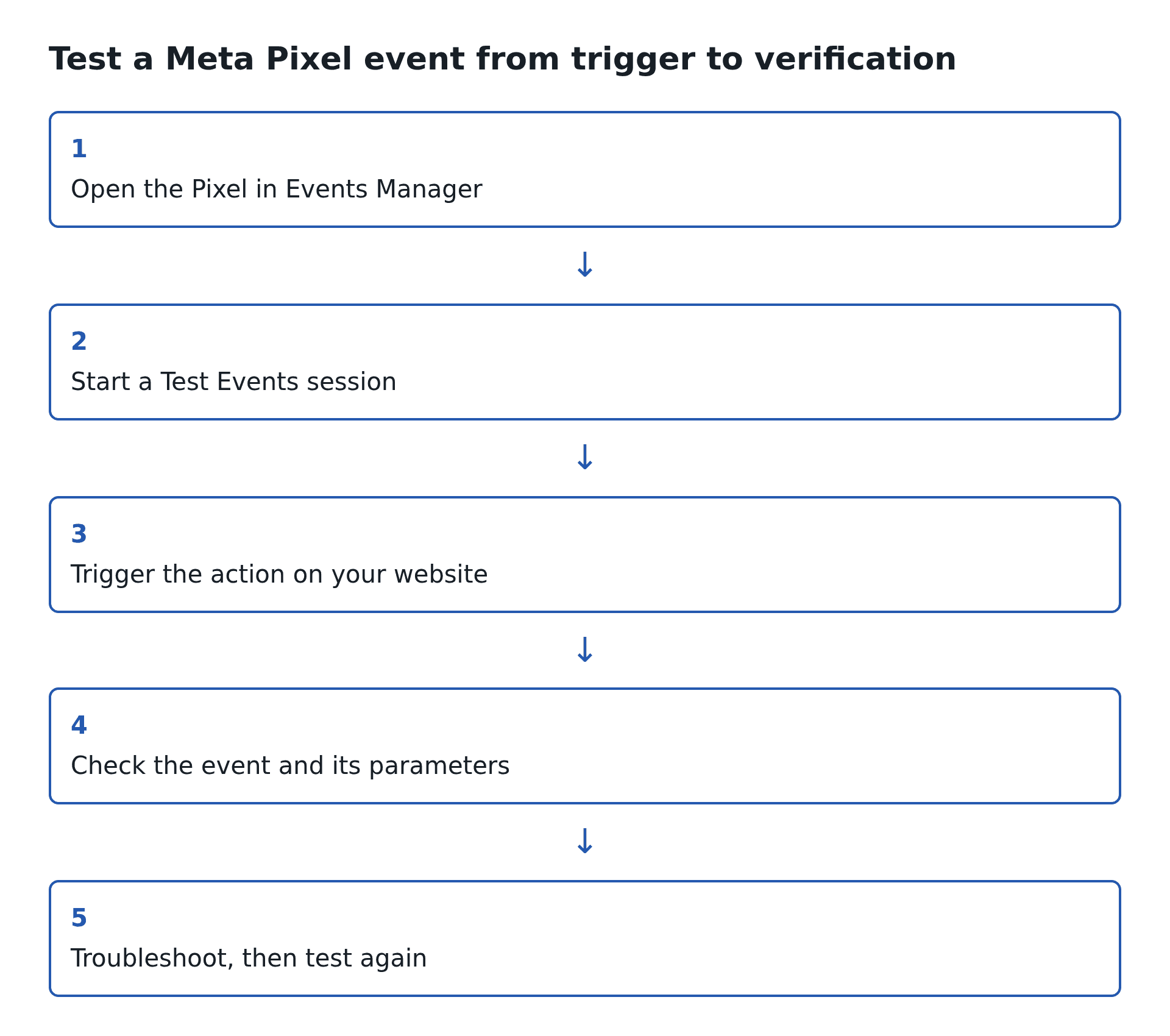
Testing sequence based on Meta’s Test Events instructions.
How to test a Meta Pixel event in Events Manager
Use the Test Events tool to confirm that a browser event reaches Meta. Keep the Test Events page open while you perform the test: Meta says web activity is recorded only while that page is open.
Select the data source. In Events Manager, choose Data sources, then select the Pixel or dataset name and ID used by your website. You can find your Meta Pixel ID in Events Manager and compare it with your site or tag setup.
Open Test Events. Choose the Test events tab. In the browser or website events section, enter your site URL and choose Open website.
Trigger one action. Load a page for
PageView, add one item to a cart forAddToCart, or run your approved test flow for a purchase. Meta’s standard event list defines which actions correspond to these event names.Check the result. Return to Test Events and look for the expected event. Open its details and compare the event name and parameters with the action you performed. For a purchase, check the value and currency; Meta specifies a decimal value and a three-letter currency code in its value and currency guidance.
Retest after a change. Adjust only the implementation or trigger implicated by the diagnostic, then perform the same action again. Record the expected event, what arrived, and any parameter that differed.
Example: to test AddToCart, open a product page through the test session, add one item once, and look for one AddToCart event. If PageView appears but AddToCart does not, the page loaded; focus next on the cart-action trigger or tag rather than reinstalling the whole Pixel.
For further setup context, see Meta Pixel configuration and common Pixel troubleshooting.
Preparing to Test Meta Pixel Events
Getting everything ready before testing Meta Pixel events is crucial. It ensures your results are accurate and actionable while saving you the headache of troubleshooting later.
Key Prerequisites
Access to the right data source: You need access to the Pixel or dataset you plan to test in Events Manager. If it is not listed, ask someone with access to select the correct source or grant the permissions you need.
Matching Pixel ID: Compare the ID in your website or tag-manager setup with the ID selected in Events Manager. You can find the Pixel ID under Data Sources; a mismatch means you may be checking a different data source than the site uses.
Access to the site or tag setup if you need to fix it: To change an implementation, you will need the appropriate website, CMS, or tag-manager access. See common Pixel troubleshooting.
Pixel installed on the page you are testing: Confirm the page includes the implementation you intend to test before diagnosing an individual event.
Tools for Testing
Once you’ve completed the setup, gather the tools you’ll need to test and validate your events effectively.
Meta Events Manager Test Events: Use it to check whether browser or server events reach your selected data source and to inspect their details.
Meta Ads Data Advisor (formerly Meta Pixel Helper): Meta’s browser extension checks for a Pixel and browser events on the current page. Its documentation lists Google Chrome and Microsoft Edge.
Google Tag Manager Preview: If your Pixel is deployed through GTM, Preview helps you check whether the tag fired and what triggered it. Confirm event receipt separately in Events Manager.
Tool | Primary Function | Key Benefits |
|---|---|---|
Meta Events Manager Test Events | Real-time event validation | Direct integration with detailed feedback |
Meta Pixel Helper Extension | Browser-based event detection | Instant diagnostics with error alerts |
Google Tag Manager | Pixel deployment and management | Code-free adjustments and flexible setup |
Setting Up a Clean Testing Environment
To ensure accurate tracking, optimize your testing environment by following these steps:
Keep the test session open: Meta records website activity only while the Test Events page is open.
Isolate browser interference carefully: If an extension may block the event, try a separate browser profile or adjust the blocker for this test where appropriate. Do not bypass your website’s consent choices.
Test one action at a time: Note the expected event and parameters before testing so you can compare the result clearly.
Step-by-Step Guide to Testing Meta Pixel Events
To make sure your Meta Pixel is tracking correctly, you’ll need to test both standard and custom events. This guide walks you through the process step by step.
Testing Standard Events
Standard events like PageView, AddToCart, and Purchase are essential for most Meta advertising campaigns. Proper testing ensures your conversion tracking is accurate and optimized.
Start by opening Meta Events Manager and selecting your Pixel under Data Sources. From there, go to the Test Events tab, which acts as your real-time validation dashboard. Enter your website URL into the field provided and click "Open Website" to open your site in a new browser window.
Now, perform the action you want to test:
For a PageView event, simply load a page.
For AddToCart, click the "Add to Cart" button on a product page.
For Purchase, use a non-production or test checkout where available, or another test flow approved for the site. Avoid completing an unintended live transaction.
Head back to the Test Events tab to see if the event appears. Click on the event to review its parameters. For Purchase events, confirm that the value is displayed as a number and the currency is shown as "USD" or your chosen currency code.
If the events don’t show up, troubleshoot by following these steps:
Use Google Chrome for testing, as some tools work best with this browser.
Refresh the page and try again.
Check for browser extensions that might block the Pixel from firing.
For further diagnostics, use the Meta Ads Data Advisor (Pixel Helper) extension.
Checking Event Data with Meta Ads Data Advisor (Pixel Helper)
Meta’s current documentation calls the extension Meta Ads Data Advisor and identifies Meta Pixel Helper as its former name. See Meta’s Data Advisor guide for the current browser requirements and diagnostic features.
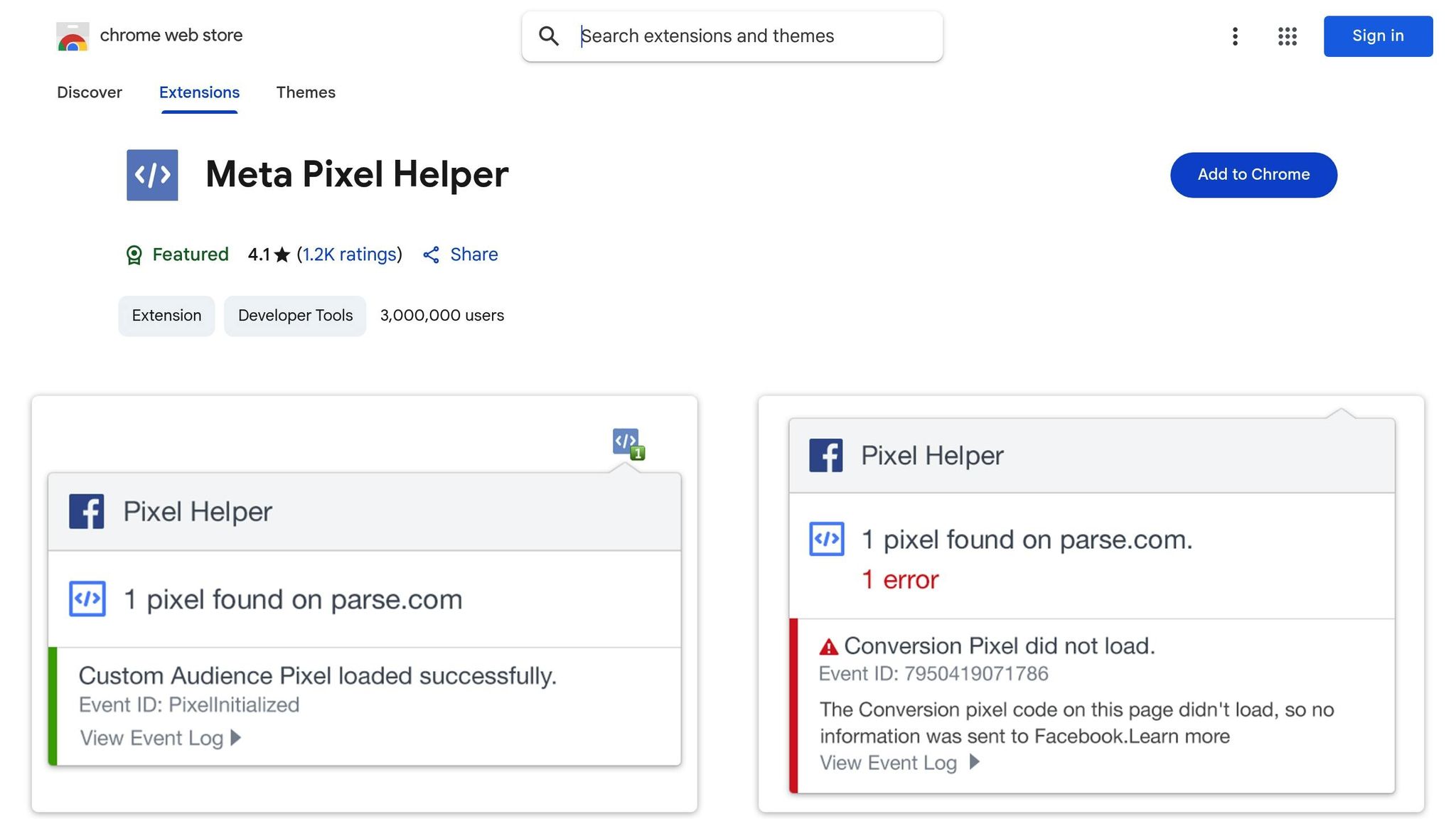
The Meta Ads Data Advisor (Pixel Helper) Chrome extension is a quick way to troubleshoot Pixel events. Once installed, visit your website and click the extension icon in your browser toolbar.
Data Advisor shows Pixels found on the page and event-level status information. Meta documents statuses such as Active, Inactive, Warning, and Error; open the relevant Pixel or event for its details before deciding what to change. If you see a new-domain diagnostic, review Meta’s guidance and the steps for cross-domain Pixel tracking.
Double-check that the Pixel ID shown in the extension matches the one in Events Manager. If they don’t match, your events might be sent to the wrong account, leading to inaccurate data and attribution issues.
For a Purchase event, check that the value reflects the conversion and is formatted as a decimal without a currency symbol or comma; check that currency is a valid three-letter code. Meta’s value and currency instructions include examples. Compare the event parameters with the implementation rather than assuming a browser badge alone confirms them.
Once standard events are verified, move on to testing custom events and parameters (including GA4 mapping).
Testing Custom Events and Parameters
Custom events allow you to track specific user actions, like video plays or form submissions. Testing these events requires a combination of tools.
If you’re using Google Tag Manager (GTM), start by enabling Preview and Debug mode. This mode shows when tags fire and what data they send. Perform the action you want to track (e.g., play a video or submit a form), and check the GTM debug console to confirm the Meta Pixel tag fires. Look for the custom event name and verify that all parameters are passed correctly. Keep in mind that parameter names are case-sensitive - "videoID" and "videoid" will be treated as different parameters.
For a browser event that Data Advisor displays, inspect the event details and compare them with your setup. Meta notes that custom conversions and some advanced event types may not appear in Data Advisor, and button-click detection can vary. Use Events Manager to confirm events the extension does not show.
Finally, verify the custom event in the Test Events tab of Events Manager. The event name and all associated parameters should appear exactly as you configured them. This three-step process - using GTM debug mode, Pixel Helper, and Test Events - ensures your custom events are properly set up and functioning across Meta's platform.
For clarity during testing, use unique data to easily identify and analyze custom events.
Troubleshooting and Validating Event Data
Once you've tested your Meta Pixel events, the next step is to interpret the feedback from your testing tools and address common Meta Pixel errors that come up. Properly understanding the feedback ensures your tracking is accurate and that you’re not missing out on critical conversion data.
Reading Feedback from Testing Tools
Meta’s Test Events tool displays website activity while the test page is open. Select an event in the log to inspect its name, parameters, and any available diagnostic details. For more about real-time conversion tracking, see the related guide.
Use the status and diagnostic wording shown in the tool rather than relying on a color alone. Meta’s Data Advisor documentation lists Pixel and event statuses including Active, Inactive, Warning, and Error, and explains that a Pixel status may differ from the status of an individual event. Open the event details, then follow the specific issue shown.
For Purchase, compare the value and currency with the transaction you intended to test. Meta specifies a decimal value without letters, currency symbols, or commas, plus a supported three-letter currency code. Standard event names are case-sensitive, so check spelling and capitalization against Meta’s standard event specifications.
Common Issues and Solutions
Missing Events
If an event does not appear within a minute, check your internet connection, refresh the website, and perform the action again. If an ad blocker may be interfering, disable it for this test only when that is consistent with your privacy requirements and the visitor’s consent choices; never bypass consent. Confirm the correct data source is selected and keep the Test Events page open. Meta notes that not every browser is supported; if you see a warning, try another browser. If a GTM tag is involved, use Preview to see whether it fired. See Meta’s Test Events troubleshooting guidance.
Duplicate Events
Check whether one website action sends the same event from more than one implementation, such as direct code and a tag-manager tag, or whether an automatic event also fires. Review the affected event and its diagnostic in Events Manager before changing the setup. Meta lists duplicate code, multiple events on one action, and automatic events among the situations to investigate in its Pixel error and warning guidance.
Pixel ID Mismatch
A mismatch in Pixel IDs can send conversion data to the wrong account. Use the Meta Pixel Helper to verify the active Pixel ID on your page and compare it to the ID in your Events Manager. If there’s a mismatch, update your website code or tag manager configuration with the correct ID, then retest to confirm the fix.
Invalid Parameters
Check the parameter named in the diagnostic. For Purchase, Meta specifies a non-negative decimal value without currency symbols or commas and a supported three-letter currency code such as USD. Compare the value and currency sent by your site with Meta’s formatting examples.
Accurate event data is essential for better ad targeting and campaign performance, especially when you track custom conversions to measure specific user actions. Once these issues are resolved, you can move forward with documenting and validating your test results.
Recording and Confirming Results
After fixing any issues, confirm your solutions by systematically recording your test data. Document key details like browser, device, operating system, and the steps you followed during testing. Take screenshots of results from both the Test Events tool and Meta Pixel Helper - this documentation will be invaluable for future troubleshooting or collaboration with your team.
Test your events across major browsers (Chrome, Firefox, Safari, Edge) and on both iOS and Android devices. Record any inconsistencies between platforms, as these might reveal browser- or device-specific problems.
Once you’ve resolved the issues, retest all events to ensure everything is functioning as expected. Fixing one problem can sometimes create new ones, so it’s important to review your entire testing checklist again, especially for events that were previously problematic.
Monitor your Events Manager data for several days after making changes. Watch for unusual drops in event volume or unexpected spikes, as these could signal new issues. Establishing a regular monitoring routine - especially after website updates or changes to your tag management setup - helps catch problems early.
Finally, maintain a detailed testing log. Include dates, the issues you encountered, the solutions you applied, and confirmation that the fixes were successful. This log not only serves as a reference for your team but also helps identify recurring patterns. When event tracking remains consistent across all browsers and devices for several days, you can feel confident that your troubleshooting efforts have paid off.
Comparing Tools for Meta Pixel Event Testing
After testing events using the methods outlined earlier, you can take your setup a step further by leveraging specific tools designed for diagnosing and refining Meta Pixel events. Each tool has its own strengths and weaknesses, so understanding what each one offers will help you choose the best fit for your needs.
Tool Comparison Table
Here’s a side-by-side look at three primary tools for Meta Pixel event testing. This quick comparison highlights their strengths, best use cases, and limitations:
Tool | Ease of Use | Real-Time Feedback | Diagnostic Capabilities | Best For | Limitations |
|---|---|---|---|---|---|
Meta Events Manager | Good | Yes | detailed event logs and parameter inspection, including server events | Comprehensive event validation | Requires Meta account access |
Meta Ads Data Advisor (Pixel Helper) | Excellent | Yes (browser only) | On-page diagnostics with clear error and warning feedback | Quick checks and troubleshooting | Some custom conversions and advanced event types may not appear |
GTM Preview/Debug | Medium | Yes | Advanced insights on tag firing and data layer details | Complex setups and multi-tag implementations | Requires working knowledge of GTM |
Meta Events Manager is perfect for users seeking detailed logs of both client-side and server-side events. It’s a versatile tool that works well for everything from basic event validation to advanced Conversion API vs. tracking pixels for server-side tracking.
Meta Ads Data Advisor (Pixel Helper) checks browser-side Pixel activity and can help verify Pixel and Conversions API installation and event firing. Some custom conversions and advanced event types may not appear in Data Advisor, and button-click detection can vary by website setup; confirm these in Events Manager. Use Events Manager to review detailed event activity and diagnostics.
Google Tag Manager Preview/Debug is the go-to option for advanced setups, providing a deep dive into tag firing, trigger conditions, and data layer variables. It’s best suited for users managing multiple tags or tracking Meta ads with Google Analytics.
Choosing the Right Tool for Your Needs
Choose the tool by the question: use Events Manager to confirm Meta received an event, Data Advisor for a browser-side check, and GTM Preview to see whether a tag fired. For related reading, see common mistakes in Meta ad testing and custom conversion rules.
To test a server event, follow the server-side event setup guide and use the server events section in Events Manager. If both browser Pixel and Conversions API send the same action, review the event’s deduplication details there.
Tailoring Your Tool Selection
Lastly, consider your team’s technical expertise. Meta Ads Data Advisor (formerly Meta Pixel Helper) is a browser extension for quick Pixel checks; install it in Chrome or Edge and start testing. Meta Events Manager requires only basic familiarity with Meta’s interface, while GTM Preview/Debug demands a deeper understanding of tag management concepts. Matching the tool to your team’s skill level ensures smoother testing and troubleshooting.
Using Automation Tools for Event Monitoring
While manual testing is essential for validating pixel events, automation tools elevate Meta Pixel event monitoring by providing continuous oversight and automated adjustments. These platforms don't just confirm that events are firing - they actively use that data to enhance campaign performance and address issues before they escalate. This constant monitoring seamlessly integrates with the broader testing strategies discussed earlier.
How AdAmigo.ai Ensures Accurate Event Data
AdAmigo.ai is an AI media-buying platform for Meta and Google Ads. It helps businesses and agencies create ads, build and launch campaigns, monitor accounts, and optimize paid media, with options for user approval or autopilot. Whatever campaign platform you use, verify the event itself in Events Manager before interpreting campaign-level results.
AdAmigo.ai supports campaign management, which is separate from event verification. Confirm that a specific event reached Meta in Events Manager. For more context on real-time data in Meta Ads, see the related guide.
AdAmigo.ai’s account and campaign tools are separate from Meta’s event validation tools. For an explanation of how the browser Pixel and Conversions API relate, see Meta Pixel and Conversions API event mapping.
AdAmigo.ai processes campaign data for paid media management; this is distinct from a direct test of whether a browser or server event arrived in Meta.
A campaign assistant’s response about account performance does not confirm that a specific browser or server event reached Meta; use Events Manager for that check.
AdAmigo.ai’s automation tools can support paid-media work for brands and in-house teams, while the event validation steps here remain necessary to check what Meta receives.
Meta’s event documentation explains that event data is used for measurement and campaign optimization. That does not mean a reported optimization percentage can be attributed to event testing alone.
AdAmigo.ai offers an autopilot option alongside user approval for campaign actions; neither option substitutes for checking the underlying event signal in Events Manager.
Benefits of Automation in Event Management
AdAmigo.ai supports paid-media campaign management, but it does not replace a direct check that a specific event reached Meta. Use the test procedure above after changing a Pixel, event, or tag trigger.
AdAmigo.ai is used for campaign management by advertisers and agencies; a campaign-level change is different from an event-level test. For broader changes, see the guide to Meta Ads anomaly detection.
For campaign performance after validating event delivery, see Meta Ads scaling and ROAS benchmarks.
Conclusion and Key Takeaways
Review of the Testing Process
For a direct test, select the correct data source in Events Manager, start Test Events, perform one matching website action, and inspect the event and parameters. If you still need to install the Pixel or want more detail on testing Meta conversion events, use those focused guides.
When an event is missing or has a diagnostic, check the selected Pixel ID, event trigger, and relevant parameters before changing the implementation. See the guide to Meta Ads tracking rules for related configuration context.
Keep a short record of the action, expected event, what appeared, and the change you made. For reporting context, see custom conversion reporting best practices.
Final Thoughts on Automation and Optimization
After event delivery is confirmed, you can investigate campaign-level performance separately. The guide to Meta Ads scaling and ROAS benchmarks addresses that wider optimization question.
AdAmigo.ai offers campaign-management options for Meta advertisers. This page covers event testing; it does not claim that testing alone produces a particular campaign outcome.
For broader campaign questions after event delivery is verified, see Meta Ads ROI optimization and how to scale Meta ad budgets without losing ROAS.
FAQs
How can I test if my Meta Pixel events are tracking user actions correctly?
Open the correct data source in Events Manager and choose Test Events. Enter your website URL, open the site from the test session, perform the action, then check that the expected event and parameters appear. Keep the Test Events page open while testing web activity.
If you are also using AdAmigo.ai, first verify the event in Events Manager. The AdAmigo.ai platform manages Meta and Google campaigns; this article does not assess its campaign recommendations or results.
What are common challenges when testing Meta Pixel events, and how can they be fixed?
Common issues include a missing event, a duplicated event, a mismatch between the expected and received event name, or an incorrect value or currency parameter. Identify which symptom appears in Test Events or Diagnostics before changing the setup.
If no event appears, keep the Test Events page open, confirm the right data source, refresh the website, and perform the action again. If the Pixel appears but the conversion does not, inspect the event-specific trigger. For duplicates, review whether the same action is being sent by more than one implementation or an automatic event. Meta’s diagnostic guide lists examples of duplicate-event and parameter issues.
If you use AdAmigo.ai, regard its campaign reporting and Meta’s event diagnostic as different views. Verify the event in Events Manager first; then use the campaign platform for campaign-level questions.
How does AdAmigo.ai relate to Meta Pixel event testing?
AdAmigo.ai is an AI media-buying platform for Meta and Google Ads. For event verification, Data Advisor can help inspect browser-side activity, but use Events Manager to confirm browser events the extension does not show and to test server events. If browser and server sources send the same action, review deduplication details in Events Manager.